Showing posts with label Facebook. Show all posts
Tip: Think you waste too much time on Facebook?
Keep Me Out! promises to allow you to access the site once in a set timeframe (in minutes), so lets just say we block Twitter and allow me to use it once in every 60 minutes (or one hour). However, this only works if you use the domain link that they provide you – and put it in your bookmarks bar and rename it.
There you have it, a quick and simple way to allow you not to get distracted. If you, however, have a lot of distractions – then good luck.
Dear Friends today I thought to share an information about Facebook.
In day to day Facebook developers are introducing lot of new facilities. In that list they have recently introduced “massage seen” facility.
What is this Seen facility on Facebook?
You have sent a message to your friend while chatting on Facebook, but you don’t know whether he/she read the massage or not. To recover this problem, Facebook developers have introduced this seen option. You can confirm whether he/she has read your massage or not with this seen facility. Really this is one of the useful facility on Facebook. But sometimes this facility gives irritations too.
Now we can disable seen facility on Facebook by using an extension on Google chrome.
Some people doesn’t like to chat with all the friends at the same time.
For example let’s assume that your friend has send a massage as follows
But you didn't reply to his message. When you meet him, he starts to scold that you didn't reply to his message.
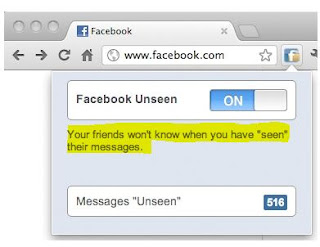
But if you have already installed Facebook Unseen on your web browser,
you can tell a small lie to him that “I didn't see your message yet”. If
you have installed Facebook Unseen on your PC, your friends won’t know
when you have “seen” their messages.
After installation you can control seen facility as your wish. If you don’t want seen facility on your Facebook, you can simply disable this option by clicking Facebook Unseen ON.
If you want this facility again on your account, you can get this by clicking Facebook Unseen OFF
Dear Friends !!! I'm kindly request you all to LIKE our Facebook Fan Page.
& Get Daily updates Easily.
In day to day Facebook developers are introducing lot of new facilities. In that list they have recently introduced “massage seen” facility.
What is this Seen facility on Facebook?
You have sent a message to your friend while chatting on Facebook, but you don’t know whether he/she read the massage or not. To recover this problem, Facebook developers have introduced this seen option. You can confirm whether he/she has read your massage or not with this seen facility. Really this is one of the useful facility on Facebook. But sometimes this facility gives irritations too.
Now we can disable seen facility on Facebook by using an extension on Google chrome.
Some people doesn’t like to chat with all the friends at the same time.
For example let’s assume that your friend has send a massage as follows
After installation you can control seen facility as your wish. If you don’t want seen facility on your Facebook, you can simply disable this option by clicking Facebook Unseen ON.
If you want this facility again on your account, you can get this by clicking Facebook Unseen OFF
Dear Friends !!! I'm kindly request you all to LIKE our Facebook Fan Page.
& Get Daily updates Easily.
how to create standout best facebook timeline cover
Most of facebook user's now have facebook timeline profile some likes it some don't but the fact is we all have to leave with it. Personally i like Facebook timeline it changed the experience of profile now your profile really express you. and the best thing about timeline is it gives you option to select a COVER cover to your timeline. Timeline cover is a stand out feature. It gives you opportunity to express your personality.
So In this post we will discuss about how one can create a standout, cool and best timeline covers with a cool facebook app Cover Canvas with just one click.
- Just Login to your facebook account
- then goto Cover Canvas and click on Get Started
- Click on Allow
- Now choose a cover you like.
- And click on Make My Cover
- Now goto your facebook timeline and change your timeline cover
if you like it put some commentaire or a like for are page on FB
This is very cool and simple trick to make your Facebook
profile attractive. There is lot of websites that providing timeline
covers but this a cool site to create attractive designs like merging,
zooming, jigsaw, editing the bottom of the cover . below is the snapshot
of the merging profile pic and timeline cover
How To Merge Profile Picture and Timeline cover on Facebook
- Go to trickedouttimeline website and click on Merge profile & Cover photo.
- trickedouttimeline will ask you to upload a picture [Upload the picture that you want to merge]
- After uploading the picture, select the part of the picture to ur cover picture and click on DONE.
- Then Click on the LIKE button of tricked out timeline or click on Already liked us?
- trickedouttimeline provides your profile picture and cover picture.
LIKE our Page for daily UPDATES
Having friends on Facebook
is nice until you notice that you are not seeing any activity from some
people in your feeds. Then after a small investigation, you find out
that they are not
anymore in your friend list. Have you ever been in such a situation? You are not alone! Trust me.
It’s been a few days since I’ve stumbled upon a nifty little plug-in called Unfriend Finder that allows you to find out who deleted you on Facebook, and I must admit I’m loving it!
Once installed in your browser, it provides you with information about your friends that Facebook does NOT want you to know. It tracks who deleted you on Facebook as well as those who rejected your friend requests. The only thing about this plug-in is that it is not retroactive so it cannot track down who deleted you or rejected friend requests before you implement the plug-in. Nonetheless, if you have several hundred friends on your list, it is possible that some of them could unfriend you in the future.
1.Go to the Download page and the website will automatically detect the browser you are using. It is highly recommended to open the browser that you normally use to open Facebook.

2.Click the Download & Install Link. For Google Chrome users, it is important to confirm the installation. It will show a pop up window asking to confirm the download and installation. Proceed with the installation.If you are under Firefox , you will need to install Greasemonkey extension first.
3.Once you have installed the plug-in, the browser will show a status message notifying you that it has already been installed.

4.Open your Facebook profile, you will notice a new option at the top right corner called ‘Unfriends‘.You can also access it via your favorites in your left.


If you want to know more about the plug-in, head up to the official configuration page and customize it according to your needs.
As simple as that, Unfriend Finder can enhanced your Facebook experience with features that is not officially available by knowing everything that is happening in your account, from rejected requests to unfriend activities.
Update : If you don’t want to install any browser plug-in that could slow down your PC/browser, I recommend you to try Who Deleted Me which is a Facebook app that notifies you who deleted you on Facebook. I have been using it since a few weeks now and I must say it’s awesome.

for more like us on FaceBook
It’s been a few days since I’ve stumbled upon a nifty little plug-in called Unfriend Finder that allows you to find out who deleted you on Facebook, and I must admit I’m loving it!
Once installed in your browser, it provides you with information about your friends that Facebook does NOT want you to know. It tracks who deleted you on Facebook as well as those who rejected your friend requests. The only thing about this plug-in is that it is not retroactive so it cannot track down who deleted you or rejected friend requests before you implement the plug-in. Nonetheless, if you have several hundred friends on your list, it is possible that some of them could unfriend you in the future.
Main Features of Unfriend Finder
- Track your pending friend requests .
- Notify you when someone rejects your friend request.
- Notify you who disabled their Facebook Account.
- And Finally , who deleted you on Facebook from their friend list.
Track who deleted you on Facebook
If you feel the need to track who deleted you on Facebook, here is a step by step guide to help you have a smooth installation process.1.Go to the Download page and the website will automatically detect the browser you are using. It is highly recommended to open the browser that you normally use to open Facebook.
2.Click the Download & Install Link. For Google Chrome users, it is important to confirm the installation. It will show a pop up window asking to confirm the download and installation. Proceed with the installation.If you are under Firefox , you will need to install Greasemonkey extension first.
3.Once you have installed the plug-in, the browser will show a status message notifying you that it has already been installed.
4.Open your Facebook profile, you will notice a new option at the top right corner called ‘Unfriends‘.You can also access it via your favorites in your left.
Track pending friend request
In the past, we could easily see which friend request is pending by accessing our friend list but this option is not available anymore.You can track your pending friend request ( even if it was sent before installing the plug-in!) by clicking on Unfriends > Pending Requests at the top of your Facebook page.If you want to know more about the plug-in, head up to the official configuration page and customize it according to your needs.
As simple as that, Unfriend Finder can enhanced your Facebook experience with features that is not officially available by knowing everything that is happening in your account, from rejected requests to unfriend activities.
Update : If you don’t want to install any browser plug-in that could slow down your PC/browser, I recommend you to try Who Deleted Me which is a Facebook app that notifies you who deleted you on Facebook. I have been using it since a few weeks now and I must say it’s awesome.
for more like us on FaceBook
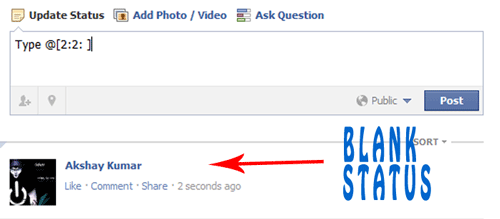
For single line Blank Status
- Copy below codes into your status
@[0:0: ]
- Note:- the text is like @[0:0:space]
- Dont write space where i have writen space rather press spacebar.
For MultiLine Blank Status :
- Paste as shown below in your staus.
@[0:0: ]
@[0:0: ]
@[0:0: ]
@[0:0: ]Another method
- Paste below codes into Facebook status
@[2:2: ]
- Done ! subscribe below for such great posts.