Showing posts with label Android. Show all posts

TuneIn Radio updated with new Google+ sign-in feature

Posted by Unknown On Tuesday, 26 February 2013 0 comments
Android Central
Google only just today announced their Google+ sign-in features that are opening up to app developers, but TuneIn Radio is one of the first out of the gate to implement it. Much as they were involved early on with Jelly Bean expandable notifications, the extremely popular radio streaming app is in on the ground floor with Google's latest features.
To the user, it's exactly the same process as signing in via Twitter or Facebook, without the necessity of course to enter any login details. You choose which of your Google accounts you wish to sign-in with, and that's it. You're also presented with a check box allowing you to restrict who has access to content you share on Google+ -- although sharing something only you can see does seem a little, well, pointless.
Google+ sign in isn't the only new feature in this update either. TuneIn Radio will now integrate with your calendar, so if you don't want to forget about that big soccer football game coming up, tapping the 'add to calendar' button will produce a handy reminder when the program is about to begin. Additionally, Chevrolet drivers with the MyLink functionality can now access TuneIn Radio directly from the car. Download the free version of TuneIn Radio can be found at the Play Store link above.
READ MORE

[how to] Use mobile as webcam|Mobiola Web Camera 3

Posted by Unknown On Sunday, 24 February 2013 0 comments
use mobile as webcam - mobiola
Short description: The first application that realistically turns your Symbian phone into a PC-compatible webcam and truly replaces your USB camera. Works over Bluetooth!
Mobiola Web Camera 3:
Turn your camera phone into a high quality wireless (WiFi or Bluetooth) or wired (USB) web camera. Mobile phone as webcam with Mobiola Web Camera 3
Main Functionality:
  • Transforms your mobile phone into a high-quality PC webcam.
  • Connects mobile phone to PC using USB, WiFi (select models) and Bluetooth connectivity.
  • Screen Capture functionality, when device screen can be demonstrated on PC real-time.
  • NEW!!! Cool video effects. Have fun and impress your friends!
  • Works with Skype, Yahoo, YouTube, MSN, AOL IM, ICQ and many others as standard USB webcam.
  • Compatible with Symbian S60 and UIQ, Windows Mobile 5 and 6, J2ME devices, Blackberry.
DOWNLOAD
READ MORE

How to Force an Android Device to Find a System Update

Posted by Unknown On Thursday, 21 February 2013 0 comments

android-system-update
Whenever Google releases a new version of Android for its Nexus devices, it doesn’t roll out to everyone at once. It may take several days before your device receives the update, but you don’t have to wait.
Note that this only works if an OTA (over-the-air) update is actually available – for example, if you’ve got a Nexus 4 running Android 4.2.1 and you haven’t yet received a notification to update to Android 4.2.2. This won’t help if you’re using an Android device that isn’t receiving updates.

Receiving Updates Normally

Android regularly checks for new system updates for your specific device. When a new version is released, you should receive a notification within a few days. This notification appears like any other notification in the notification tray – tap it to install the new version.

However, you won’t necessarily see this notification immediately, even though you may have read about a new update being rolled our to your device.
You can have Android check for a new version by opening the Settings screen. Scroll down and tap About phone or About tablet at the bottom of the list.

Tap System updates and you’ll see when Android last checked for an update. To check for an update immediately, tap Check now.

Ideally, this will find the new system update and prompt you to restart and install it. However, this won’t always work.
In the case of our Nexus 4, it’s been 3 days since Android 4.2.2 was released and Android still isn’t finding the new version.

Force Android to Find the Update

If we waited a few more days, Android would eventually locate the new version and prompt us to update. Google does a gradual roll-out of updates, and it’s clear that our device isn’t at the front of the list.
However, there is a trick we can use to bump ourselves to the front of the list and force Android to find the update.
First, open the Settings screen and tap Apps. Swipe to the left to access the All section, then scroll down, locate the Google Services Framework application, and tap it.

Tap Force stop, and then tap Clear data.

Go back into the System Update screen. Android will say that it last checked for updates in 1969. (This specific time is the Unix epoch, when Unix time started. Unix systems store their times as seconds since 00:00:00 UTC on January 1, 1970.)

Tap the Check Now button and Android should find the update. You can now tap the Restart & install button to install it immediately.


There has been some controversy over whether this trick actually works. We have used this trick on our Nexus 7 multiple times, and we used it to update our Nexus 4 to the latest version while writing this article.
It may not work for non-Nexus devices receiving OTA updates directly from carriers – we haven’t tried that, although some people have reported success.   android stop virus
READ MORE

How to Manage Your Android Device from Windows with SnapPea

Posted by Unknown On Tuesday, 19 February 2013 0 comments

snappea_top
Android users have not been dealt a great hand when it comes managing their devices from Windows Different manufacturers provide device management tools ranging from the mediocre to the just plain bad – Kies, I’m looking at you. But I have discovered SnapPea, one of the easiest ways to manage, control and backup Android from Windows.
iTunes may have improved somewhat in its most recent incarnation, but it is still one of the least appealing aspects of being a fan of portable Apple devices. If you’re an iPad, iPod or iPhone user you may wax lyrical about the operating system you are using, the quality of your hardware and the range of apps available – I have been included in this number at times – but you still have to contend with iTunes. It’s just not a great piece of software by any stretch of the imagination.
SnapPea is a different beast altogether. This is a desktop tool that can be used to organize and backup your Android tablet or phone from Windows (although there’s also a Mac version available), and despite the fact it’s currently in beta, it is already shaping up to be something very solid.

Make the SnapPea Connection

Getting up and running with SnapPea is a multi-step process. You will first need to grab yourself a copy of the desktop software from the software website, but there’s also an app that will need to be installed on your mobile device.

The phone version of the app can be downloaded from Google Play , but if you are planning on working with a tablet you will need to visit another site to download the software you need – the tablet version is not available for download through Google Play at the moment.

Run through the installation of the desktop program first and then install the mobile app on your Android device. In order to establish a connection you will need to put your phone or tablet in USB Debugging mode – if you don’t know how to do this, instructions are provided in the desktop app for various versions of Android.
With this done, make sure you have the Windows version of SnapPea running and then connect your Android device. Follow the instructions to install drivers and you’ll be ready to go in just a few moments.

SnapPea will immediately invite you to link the device to your computer so that backups will be automatically created. Just click Link or ‘Don’t link’ – you can change the setting later on if you change your mind.

Exploring SnapPea

The links down the left hand side of the program window should be fairly self-explanatory; click the Apps link to access the apps you have installed, Contacts to manage your contacts, and so on.
Starting off in the Apps section, it is possible to not only view a list of the apps you have installed, but also uninstall any you no longer need and move between internal storage and an SD card. While these are tasks easily performed on your device, if you want to work with several apps at the same time, SnapPea makes this possible.

You also have the option of backing up apps. This involves little more than copying the relevant APK files from your device to your computer and it’s a good idea before performing any major app upgrades. Should you decide that the latest version of a particular title is not for you, you can revert to your backup version instead.
To backup, select one or more apps by ticking the boxes next to them and then click the Export button at the top of the program window. When the time comes to reinstall, just click the ‘Install apps’ button and select your backup folder; you can install swathes of apps in one fell swoop in this way.
It is worth noting that only APKs are backed up, not app data – you will have to export this separately yourself.

Media Management

Almost every Android device is home to a raft of media files. Few phones are not used to store scores of photos, and both tablets and phones are used for video and music playback. In the Video, Music and Pictures section, the Export option is once again available for backup purposes. Files can also be imported.
You can click any picture to view it in full screen mode, and standard slideshow controls are available at the bottom of the screen. In addition to deletion and rotation options, you will also find a couple of buttons to set an image as your Android wallpaper or to share via Facebook.

Music management works in much the same way, and there is a nice feature available to anyone who has used, or is still using, iTunes to manage a music collection. To the upper right of the Music section, click the ‘Import iTunes music’ button to do just that – you will just have to choose which of the available libraries should be imported.

Backup and More

If you are using SnapPea to work with a phone rather than a tablet, the Contacts and Messages section of the program provide you with a useful way to create, edit and delete address book entries as well as send the occasional SMS using a regular keyboard.
Click the Welcome link in the left hand navigation bar to return to the main screen. Tucked out of the way down to the bottom right of the window you will find another Backup option. This can be used to quickly backup all of your apps, contacts and messages – they’ll be stored in one zip file that you can browse manually or reinstate using the Restore button.

At the Welcome screen you will also find another handy tool. Screen capturing is something that varies from one Android device to another. On my HTC phone, it’s a simple matter of holding the power button and tapping home, while my tablet requires a button combination I always forget that involves the volume control and only works half of the time.
Click the little arrow to the right of the Capture button in the center of the window and you can choose between taking ‘Screen only’ screenshots – which I would recommend – or ‘normal’ ones. Selecting the latter option results in very small grabs with a device-specific border.

SnapPea also includes full screen display mirroring. You can opt to show the output of your phone or tablet on your computer monitor; this is great for showing off photos or giving presentations. This button can be found to the right of the Capture button and whatever is displayed on your Android will also be displayed on your monitor – albeit with a slight lag (you are not going to want to use this option for full screen gaming).
This is a great little tool that I would recommend to any Android user. SnapPea is wonderfully simple to use, and I can’t recommend it highly enough.
What tools do you use to backup and manage your Android phone or tablet? Let us know in the comments below
READ MORE

How to Download YouTube Videos Easily on your Android

Posted by Unknown On Monday, 18 February 2013 0 comments

Today i'll share a post for Android users, about how to download YouTube videos on Android. Every Android devices comes with official YouTube apps, so all the Android users must have enjoyed by watching YouTube videos in official YouTube app.

While watching YouTube videos on your Android, the disadvantage is slow buffering and high data usage. So always the best option is, downloading your favorite video to Android device and watch. This will save your money and time.


How to Download YouTube Videos on your Android Easily

Let's see a simple way to download YouTube videos to Android devices

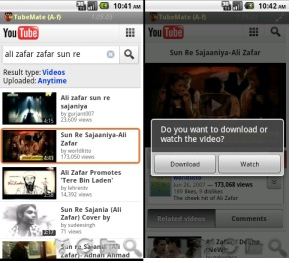
There is an app available called TubeMate, this allows you to download YouTube videos easily on your Android.

Click Here to download TubeMate

After installing TubeMate on your Android, open TubeMate and search for a video file

Now tap on your favorite video file and click the Green down arrow icon to download the particular video file to your Android device.


How to Download YouTube Videos on your Android Easily using TubeMate


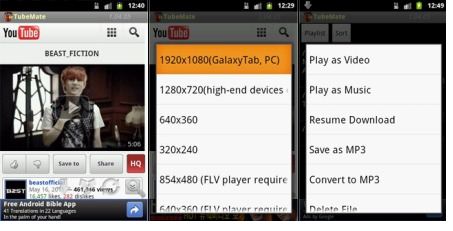
Now a window will appear with 2 option, in that select Download

In the next appearing window select resolution


How to Download YouTube Videos on your Android Easily using TubeMate


That's all !!! Now download will start automatically.
READ MORE

The Google Game : Ingress

Posted by Unknown On Sunday, 13 January 2013 0 comments


 Ingress new game from Google relies on the fact Enhanced
*
*
*

Google today introduced a new game for Android phones called Ingress and based on the technology actually improved, as incorporated between the real world and the game and allow the continuing players with each other. We still do not know much about the game can not be tried only after an invitation from Google, you can register to get them from here.

In the beginning, Watch this video to get an idea of the initial style of the game:v


 The idea of the game is on and there is a mysterious power may be dangerous in the event took place in the wrong hands. This energy spread around the world and there are two teams of players to search for, and it seems that you can choose to join one of two teams: the first team wants to get the energy, and the second team wants to prevent the first team than that.

The events revolve game in the real world, ie to play this game you carry your phone and take to the streets and by the camera you'll see on your phone screen this energy deployed in certain places, and in your way will find many things and collecting and using them to control a certain area, and will also communicate with the players the others who play around the world and forming alliances with them.

So far, we do not know more about this mysterious and exotic game. If you're lucky and managed to get a call, you can download the game from the Google store Playboy. Without calling for the game will not be any benefit, but certainly Google will launch the game for everyone immediately after the pilot phase.


READ MORE

5 Top Anti-Virus Apps for Android

Posted by Unknown On Thursday, 10 January 2013 0 comments

5 More Top Anti-Virus Apps for Android5  Top Anti-Virus Apps for Android

The geek


Another list of some of the more popular anti-virus apps for Android around to help Android users protect themselves from mobile security threats.

It’s no secret that hackers are targeting Android users in ever greater numbers these days. In fact, nearly 1 million Android users were infected with malware during the first six months of this year alone.
Unlike the ?simple flip-phones of yesteryear,? as ESET security researcher Cameron Camp pointed out in the past, people now have a ?computer that happens to make phone calls.?


1. Bitdefender Mobile Security

Already well known in the desktop PC anti-virus business, Bitdefender is using its talent for Android security with its Bitdefender Mobile Security app.
Featues:
  • Anti-theft
  • SD card scanning
  • Very small battery or performance impact
  • On-demand malware scanner, relying fully on Cloud technology (read: no updates required)
  • On-install scan
  • Security audit
  • Web security
Bitdefender Mobile Security is what the company calls a “next-gen antivirus solution” for Android devices that uses little (to zero) system or battery power while providing users with a safer and more informed Android experience.

2. Kaspersky Mobile Security

Kaspersky is also already well known in the desktop PC anti-virus business, and it too is using that talent to help protect Android device users.
Features:
  • Remotely lock or wipe your phone
  • Locate lost smartphone using GPS, GSM or Wi-Fi
  • SIM card watch
  • Call & SMS filter
  • Privacy protection
  • Anti-malware Protection
Kaspersky Mobile Security infuses a well-rounded assortment of anti-theft, anti-malware, privacy protection, and call/SMS filter tools to help users protect both their data as well as their privacy.


3. Norton Mobile Security LITE

Norton is yet another of the desktop PC security companies looking to help protect Android users from malicious software.
Norton Mobile Security Lite protects your mobile device against loss, theft and malware.
Features:
  • Anti-malware protection
  • Remote lock
  • Anti-theft protection
  • Find lost phone
  • SIM card watch
  • Web protection
  • Call & SMS filter
Since millions of desktop PC users already use Norton to protect their desktop PCs, Norton Mobile Security Lite is probably one of better choices since it helps maintain a single point of reference to secure both platforms.

4. Antivirus Free

Antivirus free is one of the more basic anti-virus apps for Android out there, providing fast and lightweight malicious app protection for your phone.
It claims to use less than 0.1% of your battery, and will let you know when such an app is detected, keeping your phone secure.
Features:
  • lightweight
  • malware, spyware, and trojan protection
That’s it. So if you’re looking for bare bones protection without all the fancy bells and whistles then anti-virus free is the Android app to choose.


5. ALYac Android

AllYAc is a desktop PC security company that converted its security protection package for use on Android smartphones.
Features:
  • Anti-virus protection for Android
  • Package safety indices (application and developer safety ratings)
  • Spam management
  • App management (manage running and potentially dangerous apps)
It lacks the bells and whistles of the some of the more robust apps above, but it does the trick.


READ MORE

Share Wireless/3G Conection From Your Android Device

Posted by Unknown On Thursday, 3 January 2013 0 comments

[Tutorial]How To Share Wireless/3G Conection From Your Android Device

Ok you have an android smartphone and you subscribed to a data bundle and feel like sharing to your laptop, tablet or a friend’s mobile phone.
Im glad to tell you that you can easily share the connection to your gadgets, with this you can browse free on your ipad with a wifi connection just your mobile phone, and you can share to all devices having wlan.
The wireless access point functionality on the android phone makes this possible, To use this function you gotta have a 3g package that sends and receiving data. My advice go for an unlimited plan to ensure you get no surprise when using it.

Enable wireless access point in your Android phone

Step 1: On your Android phone, go to Settings
Step 2: Now choose Wireless and networks.
Step 3: Go to the section Access point settings.
Step 4: Inside field Router name (SSID), give a name to identify the access point that you create (no accents or special characters)
Step 5: Scroll down the list to Security and select option WPA2 (AES) to encrypt the exchange between your devices and the access point.
Step 6: In the Password field, enter a complex password that will be required to use the Internet connection on your phone.
Step 7: Go back to the section Wireless and networks.
Step 8: Now simply check the box next to Portable Wi-Fi Hotspot to activate your access point

Connect to access point

Now that your phone acts as a gateway to the Internet, you will be able to connect to it via Wi-Fi from your laptop, tablet or other phone, and enjoy your Internet connection .
Step 1: On your computer, tablet or phone, look for available WiFi connections.
Step 2: Select your access point.
Step 3: Click Connect.
Step 4: Enter the password that you set on the access point and confirm
Step 5: The connection to the Internet via the access point on your Android phone is established.
Step 6: On your phone, access point Wi-Fi is active.
Step 7: You can now browse the Internet on your computer or tablet by connecting on your smartphone.
READ MORE

Blogger news